Worked example · 29 October 2026
Edit a file through your browser
Open a terminal link, make a small Vim edit, and save it on the host. Then repeat with view-only mode to check that browser input is refused.
We ran this with the hosted OnlyTTY viewer in desktop Chrome at 390 × 844 pixels. It is a browser test at a phone-sized viewport; a physical phone and its touch keyboard were not tested.
1. Start with a scratch file
You need OnlyTTY and Vim on your host. Create a new scratch directory and put Status: ready for review. in a file named demo.md. Keep your own files out of this example.
$ onlytty --ttl 10m --no-qr -- vim -Nu NONE -n -i NONE demo.mdOpen the printed link in your browser. Compare its fingerprint with the host's fingerprint, then start Vim from the host. Treat the link as access to this terminal.
2. Make and save a small edit
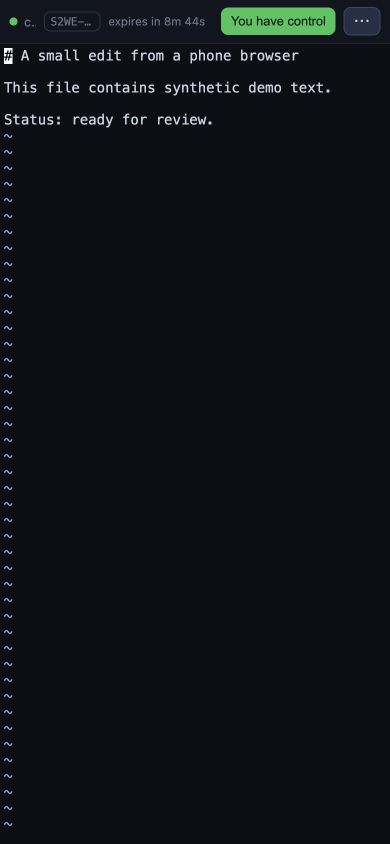
The viewer showed You have control after startup in our run. If yours does not, use Take control; the default host policy grants control requests automatically.
In Vim, type this command and press Enter:
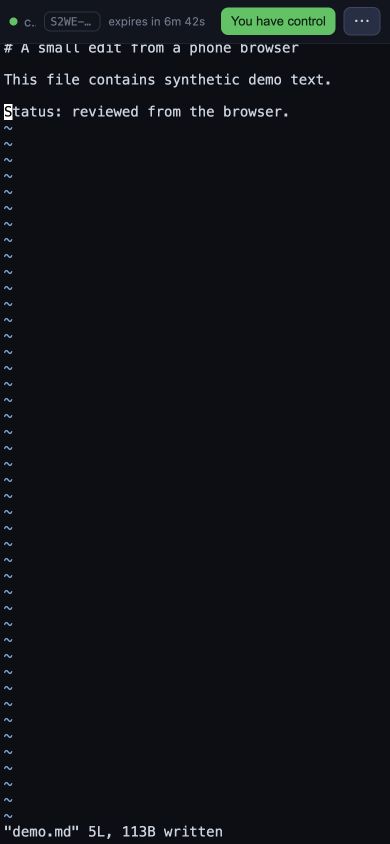
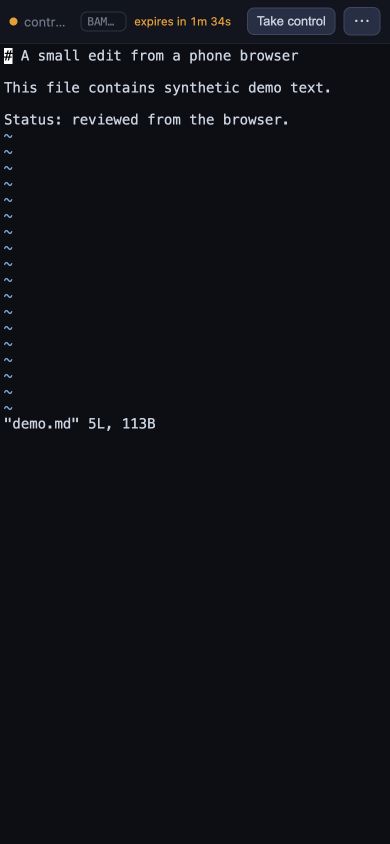
:%s/Status: ready for review./Status: reviewed from the browser./Type :w and press Enter to save. On the host, open another terminal and read the file:
$ cat demo.mdOur independent host check found Status: reviewed from the browser. in the saved file.
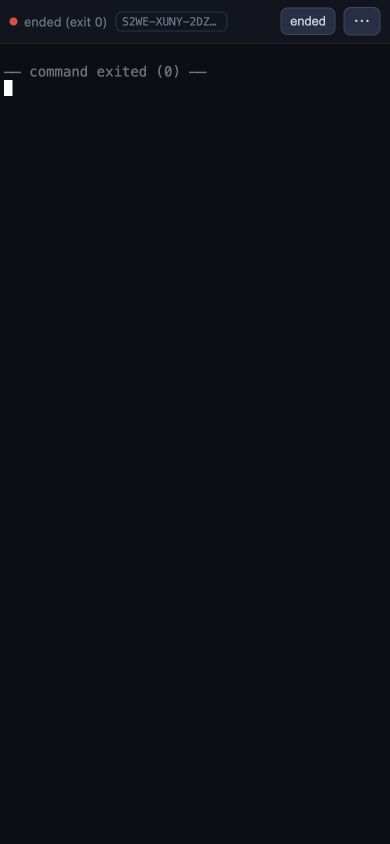
Type :q and press Enter. Vim exited with code 0 and the viewer showed ended (exit 0).
3. Check view-only mode
$ onlytty --control view-only --ttl 5m --no-qr -- vim -Nu NONE -n -i NONE demo.mdOpen the new link, compare the fingerprints, and start Vim on the host. Request control and try typing i, x, then Escape in the browser terminal.
Our viewer reported control not granted — host is view-only. We saved and quit from the host with :wq. The file's SHA-256 was unchanged after the input attempts. Both demo sessions stopped cleanly.
What this example establishes
The browser edit reached the host file, view-only mode refused input, and ending the command ended sharing. This was a small synthetic file, not a test of production reliability or every device.
The host was macOS on Apple Silicon with Vim 9.1 and an existing OnlyTTY development build reporting onlytty (devel). We did not rebuild that binary from the current source. Its SHA-256 is in the test record, along with the file checks. These screenshots are original browser captures.
For Neovim's setup and key commands, see the Neovim guide. For access boundaries, read the security model.